How to use BricksPlus Wireframe ACSS Templates
ACSS Not Configured
Step - 1
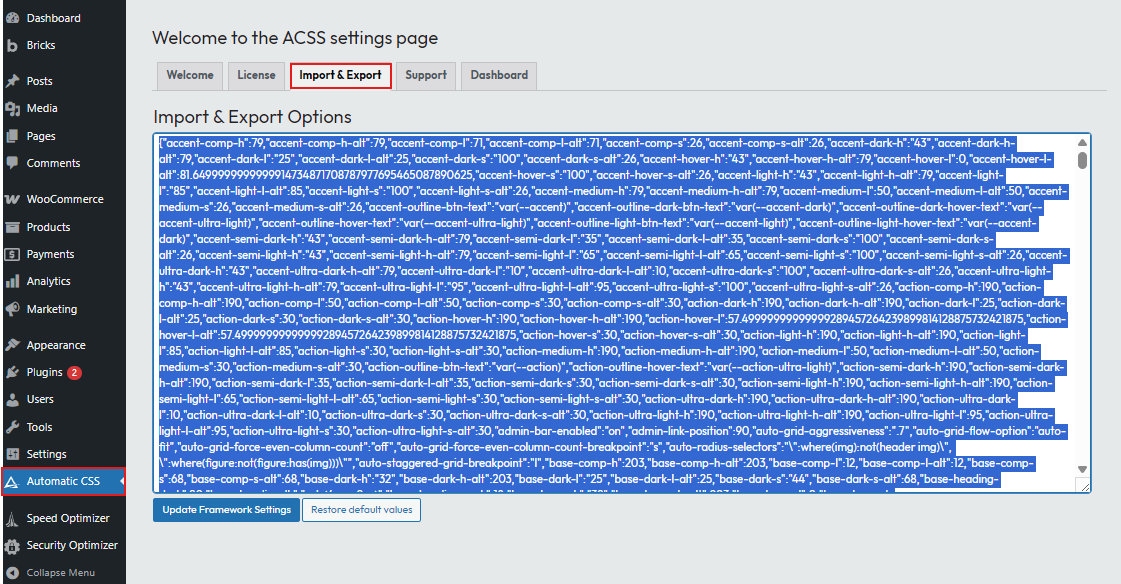
Copy the content of the ACSS settings TXT file.
Step - 2
Import / Paste the ACSS settings.
Step - 3
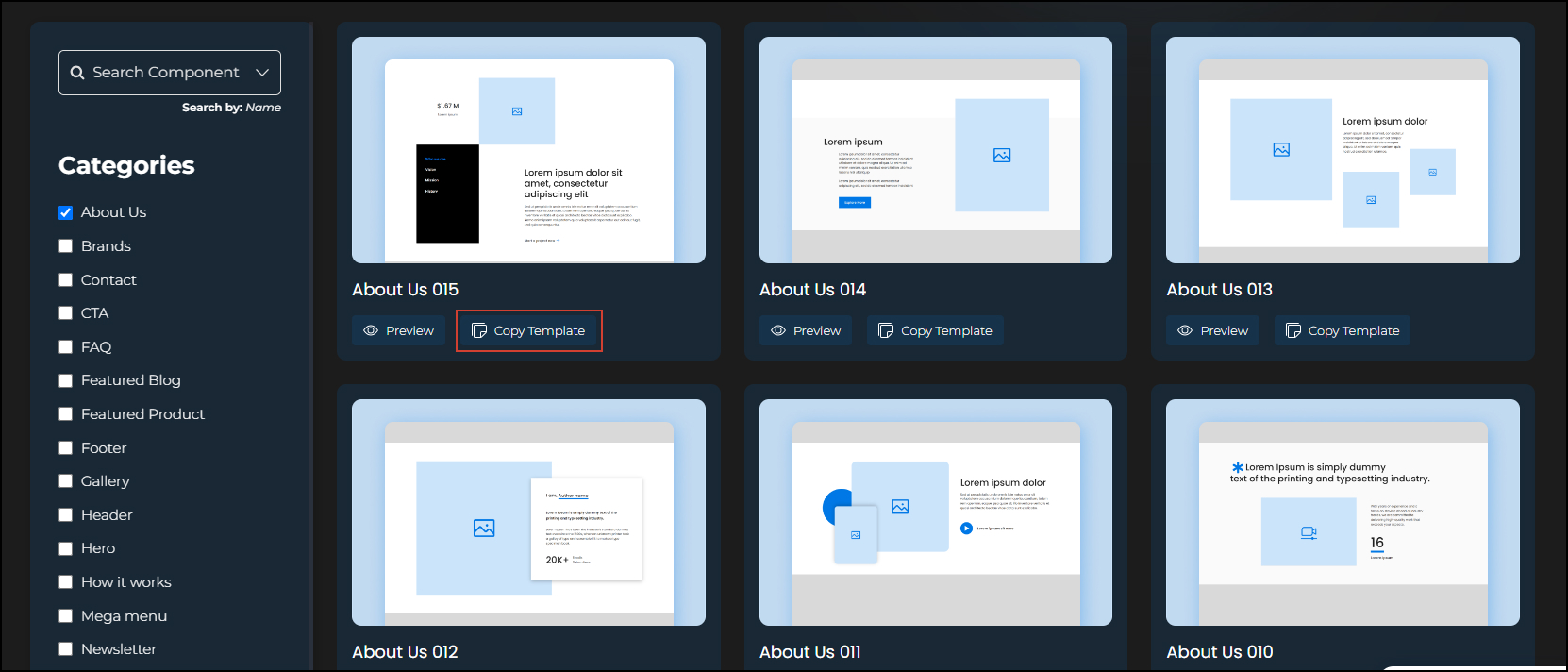
Copy the wireframe.
Step - 4
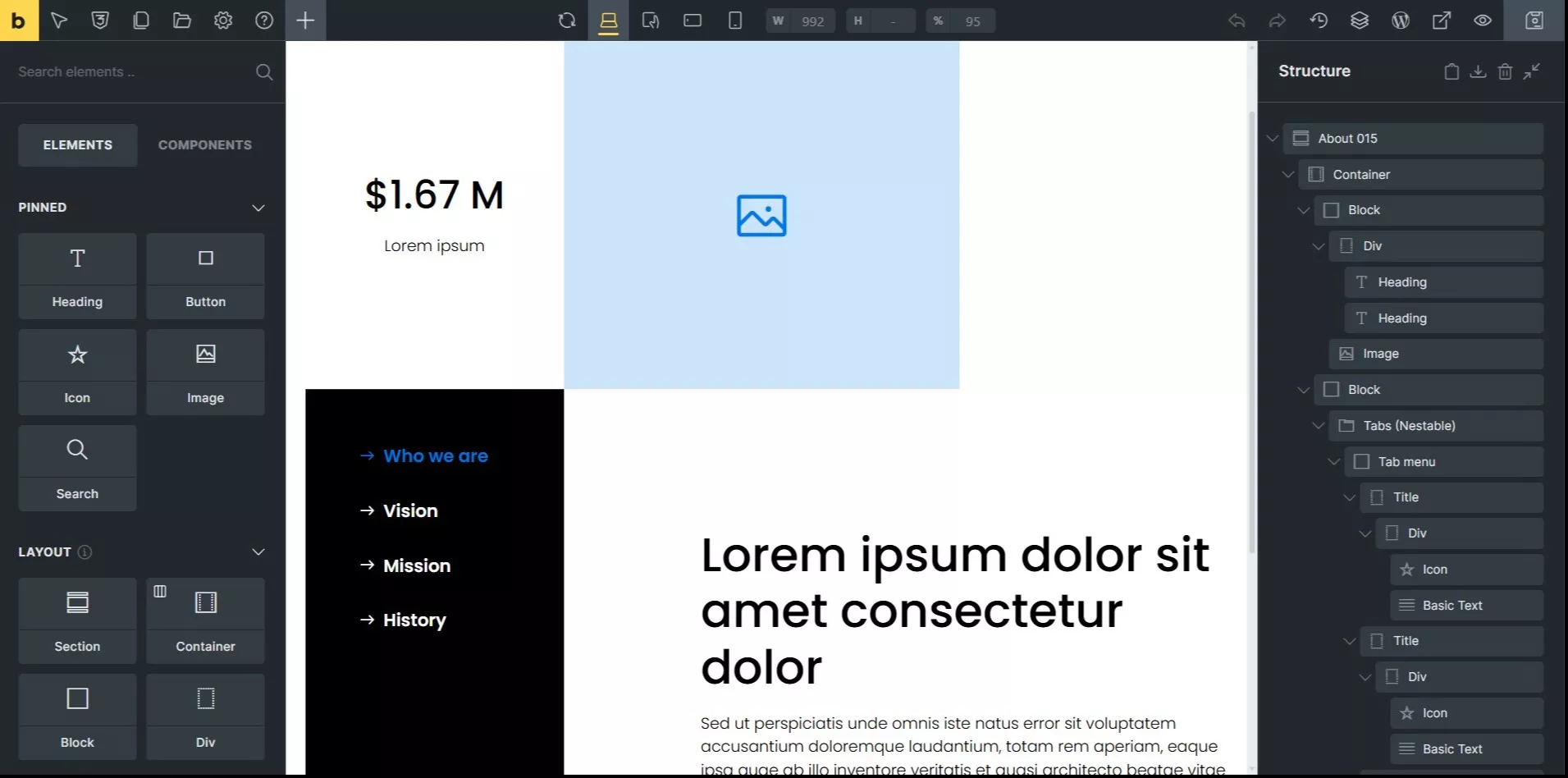
Paste the wireframe.

ACSS Already Configured
Step - 1
Do not import the ACSS settings if ACSS is already configured on your website. Importing the settings will replace your existing setup.
Step - 2
Copy the wireframe.
Step - 3
Paste the wireframe.
Troubleshooting
The imported colors and typography do not match the original wireframe.
Solution:
Check your Typography and Color settings in ACSS.
Our default Typography setting is:
Variable Name
Mobile-Value
Desktop-Value
H1
32
72
H2
28
64
H3
24
48
H4
24
40
H5
18
24
H6
16
18
xxl
16
18
xl
16
16
l
15
15
Our default color setting is:
Variable Name
Value
Primary
#000000
Secondary
#ffffff
Tertiary
#F5F5F5
Accent
#007BE5
Base
#C2DAF0
Neutral
#81d4fa
You have two options:
- Modify your ACSS settings to keep the wireframe design unchanged.
- Edit the wireframe to match your existing ACSS settings.
Missing wireframe styling?
If some wireframe styles are missing, download the classes JSON file and import it into Bricks Style Manager → Classes.
